
How to Create a Shopping Cart type form inside of SAP Business One
Streamline sales processing with this fancy quick to create popup shopping cart!
Searching through the item master for items customers want to purchase can be a daunting task for clients with thousands, tens of thousands or more items. Here is a really simple approach to putting the most common items together in a Shopping Cart type form, for use inside Sales Quotations or Sales Orders.
In the example below, I simply click Shopping List, and up pops my 10 most popular items. The user can then simply check the box on the left, and enter the desired qty on the right. All selected items and quantities are then loaded right into the SAP Business One sales order or Sales Quote!
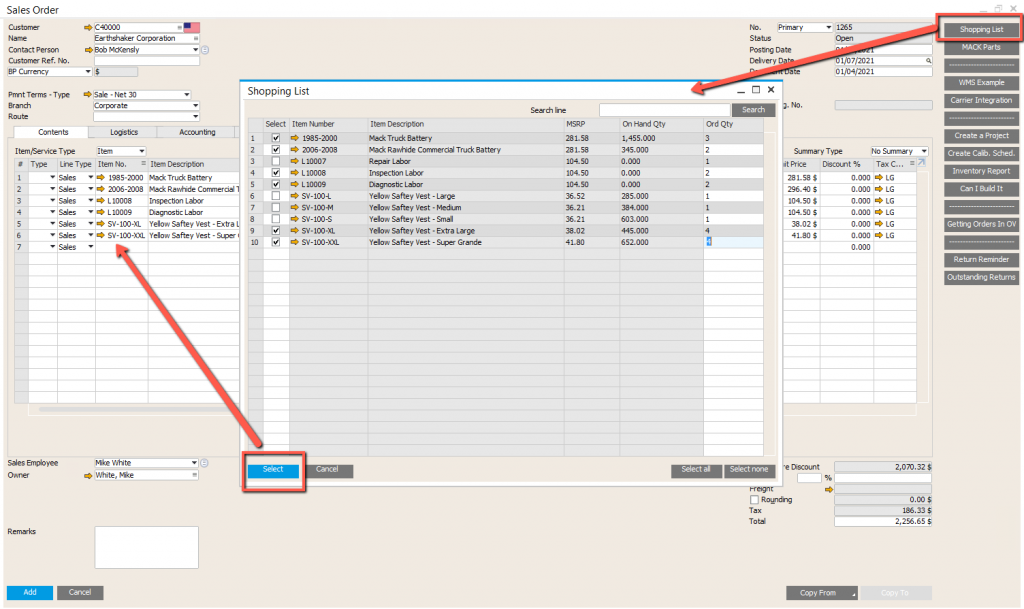
Step 1 – Determine the SQL report for the selection of items to be displayed in the shopping cart.
In this example (HANA SQL), I am selecting all items where the Item Group Property 1 is selected. Google “SAP Business One” Item group Properties for more info on Item Properties. To recreate what I have done, simply copy this query into the Query Generator (Here is how) and save as “Shopping List”
SELECT
T1.”ItmsGrpNam”,
T0.”ItemCode”,
T0.”ItemName”,
T2.”Price”,
T0.”OnHand”,
1 AS “Ord Qty”
FROM OITM T0 INNER JOIN OITB T1 ON T0.”ItmsGrpCod” = T1.”ItmsGrpCod”
INNER JOIN ITM1 T2 ON T0.”ItemCode” = T2.”ItemCode” AND T2.”PriceList” = 4
WHERE T0.”SellItem” = ‘Y’ AND T0.”QryGroup1″ = ‘Y’
Step 2 – Create a Boyum Universal Function
Navigate to the B1Usability Package Universal Function procedure: Administration > Add-ons > B1Usability Package > Module Configuration > Universal Function > Universal Function Configuration. Simply setup your Universal Function is you see below.
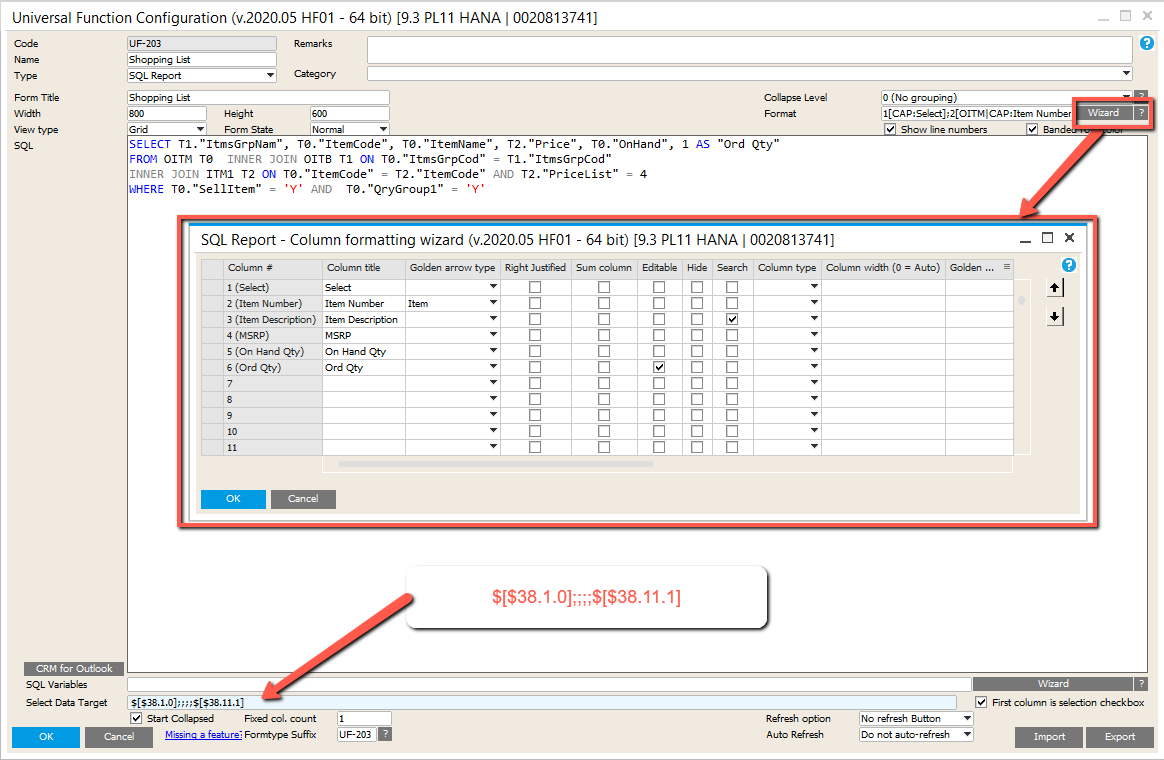
The data for “Select Data Target” tells SAP what fields on the Marketing Document row to fill out form this form i.e. $[$38.1.0];;;;$[$38.11.1] You can actually copy and past the test here if you like. I recommend doing that. If you are off by one semi-colon, this will not work properly.
Step 3 – Set the Item Property for all of the desired items to be displayed in the shopping cart.
I made it easy for myself by defining the first user definable Item Property as Shopping cart. However, you can use any description you want.

Step 4 – Add your new Universal Function as a new Button on the Sales Quotation and or Sales Order forms.
Open up the desired form i.e. Sales Order and select the Boyum function (Right Mouse Click) called “Edit Function Buttons On This Window“. Add the new universal function as a new button and call it whatever you want. For me, I can calling it Shopping List.

Now, close your sales order or sales quotation, and open it back up. You should now see a button, and have a new Shopping Cart/List feature live.
Remember, you can simply change the first Item Property in any item master item to control which items will be displayed on your shopping cart.
Enjoy!
