
Create your own AR Collections Workbench for SAP Business One
The folks in accounting will love you for this! Collections is not fun. We don’t wake up in the morning saying to ourselves, “I cant wait to call people and tell them to pay me!”. The Collections Workbench will detail all past due open AR invoices, with drill down and grouping so extra large collection requirements can be met. The quick launch buttons on the right enable the accounting professionals to click a button, and add a note, run the Dinning Wizard (Standard SAP collection Tool), AR Aging Report, Process an Incoming Payment, Credit Memo or simply update the customer (like putting them on hold if they are extra naughty!). We create the query, the Universal Function to execute the query, and the Universal Functions to access the Dunning Wizard and Customer Management with a click of a button. Finally we then add the new report Universal Function to the main menu!
This is a simple workbench that combines a Query and then several Boyum Universal Functions to bring the query to life! Below is an example. Build Time Est: 10 Minutes

DIY Collections Workbench for SAP Business One (HANA)
Step 1 – Create your collection query
Using the Query Generator found in the Tools menu in SAP Business One, enter the query below (Copy and paste from here if you are lazy like me):
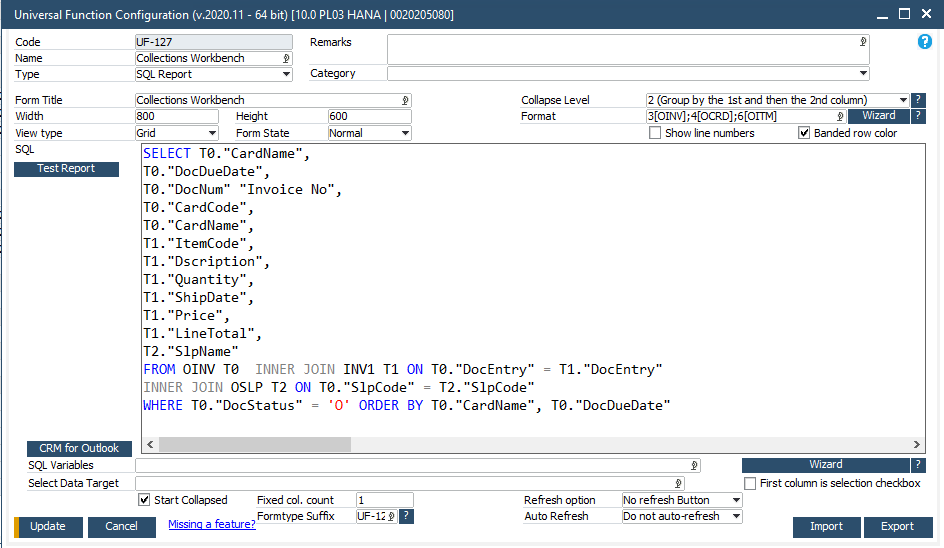
SELECT T0.”CardName”, T0.”DocDueDate”, T0.”DocNum” “Invoice No”, T0.”CardCode”, T0.”CardName”, T1.”ItemCode”, T1.”Dscription”, T1.”Quantity”, T1.”ShipDate”, T1.”Price”, T1.”LineTotal”, T2.”SlpName” FROM OINV T0 INNER JOIN INV1 T1 ON T0.”DocEntry” = T1.”DocEntry” INNER JOIN OSLP T2 ON T0.”SlpCode” = T2.”SlpCode” WHERE T0.”DocStatus” = ‘O’ ORDER BY T0.”CardName”, T0.”DocDueDate”
Test your query, run it, make sure it works for you, then create a Universal Function Configuration (Available form the Add-Ons > B1Usability Package Menu) like you see here.
Step 2 – Add the new Universal Function Configuration to the main menu (This is another Boyum B1Usability tool)

Step 3 – Run the new report and create the quick launch buttons
From the SAP Business One menu, wherever you decided to place the Collections Workbench, run the Collections Workbench. Right Click anywhere in the Collections Workbench and select the Boyum option “Edit Function Buttons On This window”. Now simply fill out the grid as I have below. For the Dunning Wizard and Customer Management, you will need to create two new Universal Functions as “Macro” type. Again, as I have done below.

Now, close out of the Collections Workbench, and then re-open it from the menu. Wala! You should have a fully functional Collections Workbench!
